Local-first · macOS · v0.1.0

Save your entire coding context. Return to it later.

Rabta captures a task's whole workspace — the files and terminals in your editor, your browser tabs, and your git branch — into a capsule. Reopen it and your files, terminals, tabs, and branch open right back up.

Apple Silicon (arm64) macOS 11+ 5.5 MB Signed & notarized

One local hub on 127.0.0.1 — a task, captured across your tools


The capsule

One task. Its whole workspace, captured.

You work in tasks, not windows. Your editor and browser connect to a single local hub; Rabta snapshots the files, terminals, tabs, and git branch that belong to the task you're on.

What a capsule is

A saved snapshot of a task's state

A capsule records which files, terminals, tabs, and branch a task was using — the pointers, not the contents. Save it when you switch away; resume it to reopen that workspace. Switching tasks auto-saves the one you're leaving.

Save Switch Resume

Editor files & workspace

The open files, folders, and terminals in Cursor or VS Code — reopened on the same workspace.

Editor terminals

The terminals you had open and their working directories, brought back with the task.

Browser tabs

The tab URLs & titles that belong to the task — reopened when you restore it. Page contents are never read.

Git branch & project

The repository, its current branch, and the project the task lives in. Restores put you back on the right branch — never a forced checkout.

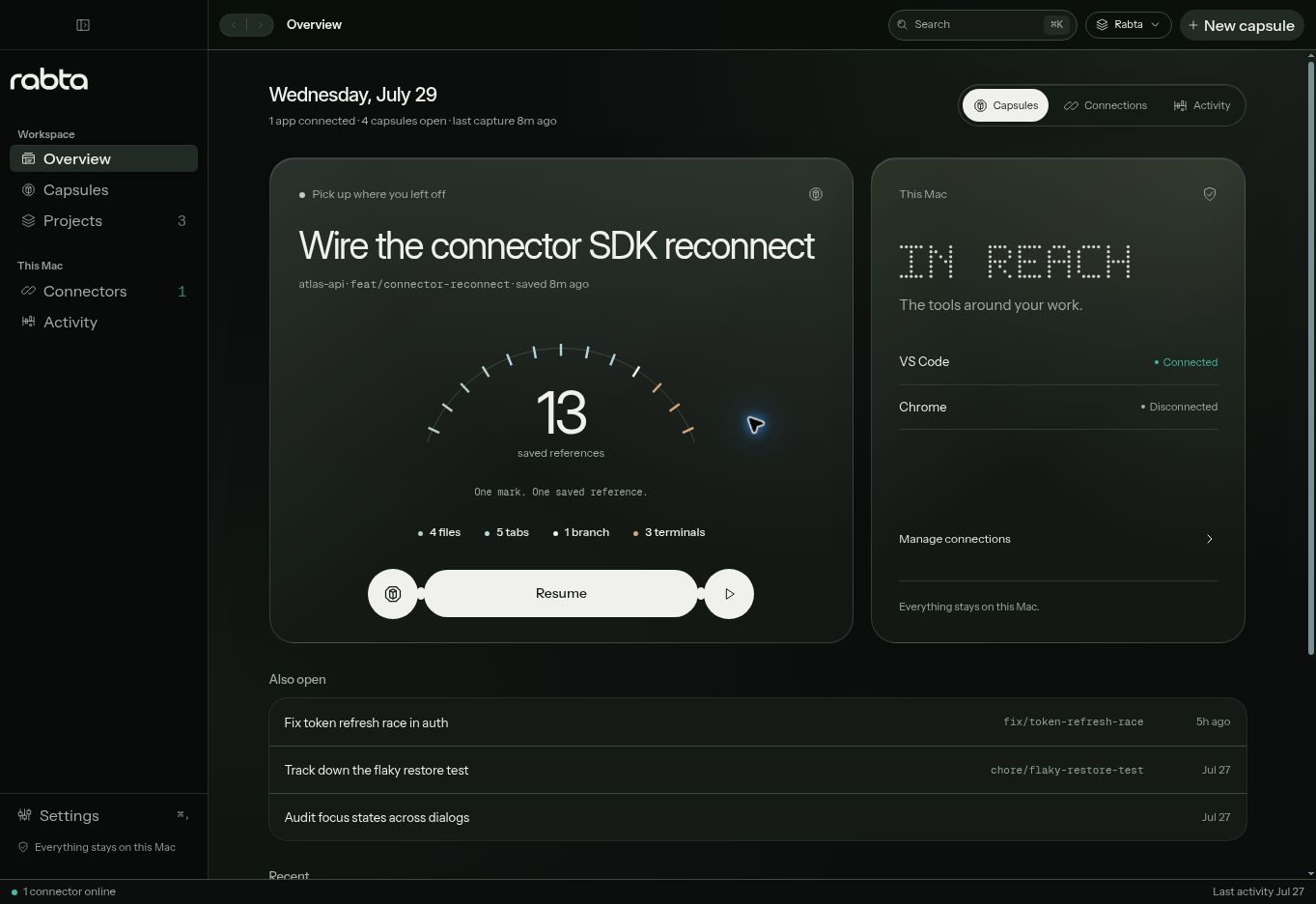
The Rabta desktop app: a sidebar with Overview, Capsules, Projects, Connectors and Activity; the main pane shows project and connector stats, an active task with a Resume button, a Continue Working capsule, and Connected Apps showing VS Code connected and Chrome offline.
The desktop app runs entirely on your Mac; capsules stay on your disk.

Local-first, by construction

Your code and context never leave your Mac.

Rabta has no backend to send anything to. The app and its connectors run entirely on your machine, and connectors talk only to the hub on 127.0.0.1.

No accounts

Nothing to sign into

No login, no profile, no email required. You open the app and use it.

No cloud

There is no Rabta server

No sync service and no remote storage — capsules live in a folder on your disk.

No telemetry

No analytics or tracking

No usage pings, no crash reporting service, no cookies, no ads.

No source upload

Only pointers, not contents

Rabta stores file paths, branch names, and tab URLs — never file contents, terminal output, or page data.

You approve the browser

The Chrome connector pairs only after you click Approve in the app, and reads just tab URLs and titles.

Localhost only

The hub binds to 127.0.0.1 and is never exposed to the network.

Read the full privacy policy.

Install

Download, drag, launch.

A signed, notarized app that installs like any other Mac app — no right-click tricks, no Gatekeeper warnings.

1

Download & open the DMG

Grab Rabta_0.1.0_aarch64.dmg and double-click it to mount.

2

Drag Rabta to Applications

Drop the Rabta icon into the Applications folder shown in the window.

3

Launch it

Open Rabta from Applications, Spotlight, or Launchpad. It opens and starts its local hub.

4

Add the editor connector

Install the Cursor / VS Code connector from Open VSX — it connects automatically and shows up in Rabta's Connectors view.

5

Add the browser connector

The Chrome connector arrives once it clears Web Store review. Approve the pairing once in the app.

6

Work in tasks

Register a project, save a capsule, switch away, and resume — your workspace comes back.


Connectors

Connect your editor and browser.

The desktop app captures and restores; the connectors are the thin bridges that let it see your editor and browser. Each connects only to the local hub.

Cursor / VS Code

Available now

Snapshots and reopens your open files, workspace folder, and terminals. Installs from Open VSX — which Cursor, VSCodium, and Windsurf install from directly.

rabta-connect.rabta-vscode · v0.1.0
Install from Open VSX

Chrome

Pending review

Captures the tab URLs and titles that belong to a task and reopens them on restore. It pairs only after you approve it in Rabta, and can never read page contents.

Rabta Connector · id aaombpafbhjkoinppogieaclijddlebo

Download integrity

Signed, notarized, and verifiable.

The Mac app is signed with an Apple Developer ID and notarized by Apple, so it opens with a normal double-click. Verify the download yourself before you run it.

Release

Version
0.1.0
File
Rabta_0.1.0_aarch64.dmg
Arch
macOS arm64 · Apple Silicon
Min OS
macOS 11.0 (Big Sur)
Size
5,495,778 bytes
Team ID
86M2X6MUA3
codesign notarized stapled Gatekeeper: accepted

Verify the SHA-256

After downloading, run this in Terminal — the output must match exactly.

# in Terminal, from where you saved it shasum -a 256 Rabta_0.1.0_aarch64.dmg # expected: 3978ec57af7d37ab32670033d679c21a28cf74cebb0435ce011049e05635c655
3978ec57af7d37ab32670033d679c21a28cf74cebb0435ce011049e05635c655
Download Rabta for Mac

v0.1.0 · Apple Silicon · 5.5 MB · com.omnibus.dev